
Devices
Connecting WhatsApp
Scan a QR to start today, or connect the official Business API. Same inbox, same automations, same campaigns.
Where
Devices
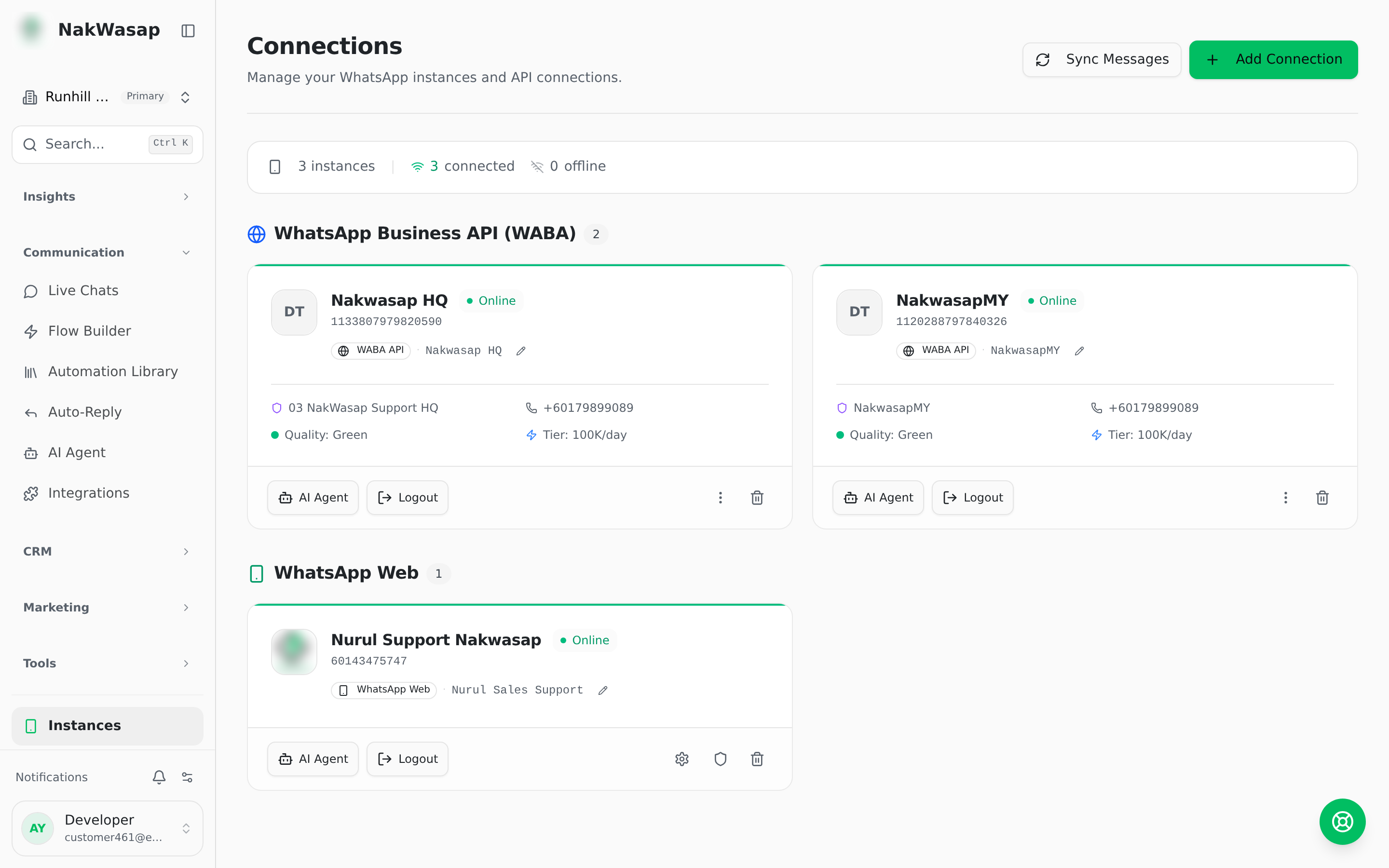
Two connection types
Connecting by QR
- —Devices → Add device → WhatsApp Web
- —Name the device
- —Scan the QR with WhatsApp → Linked devices → Link a device
- —The dialog closes itself when the connection opens
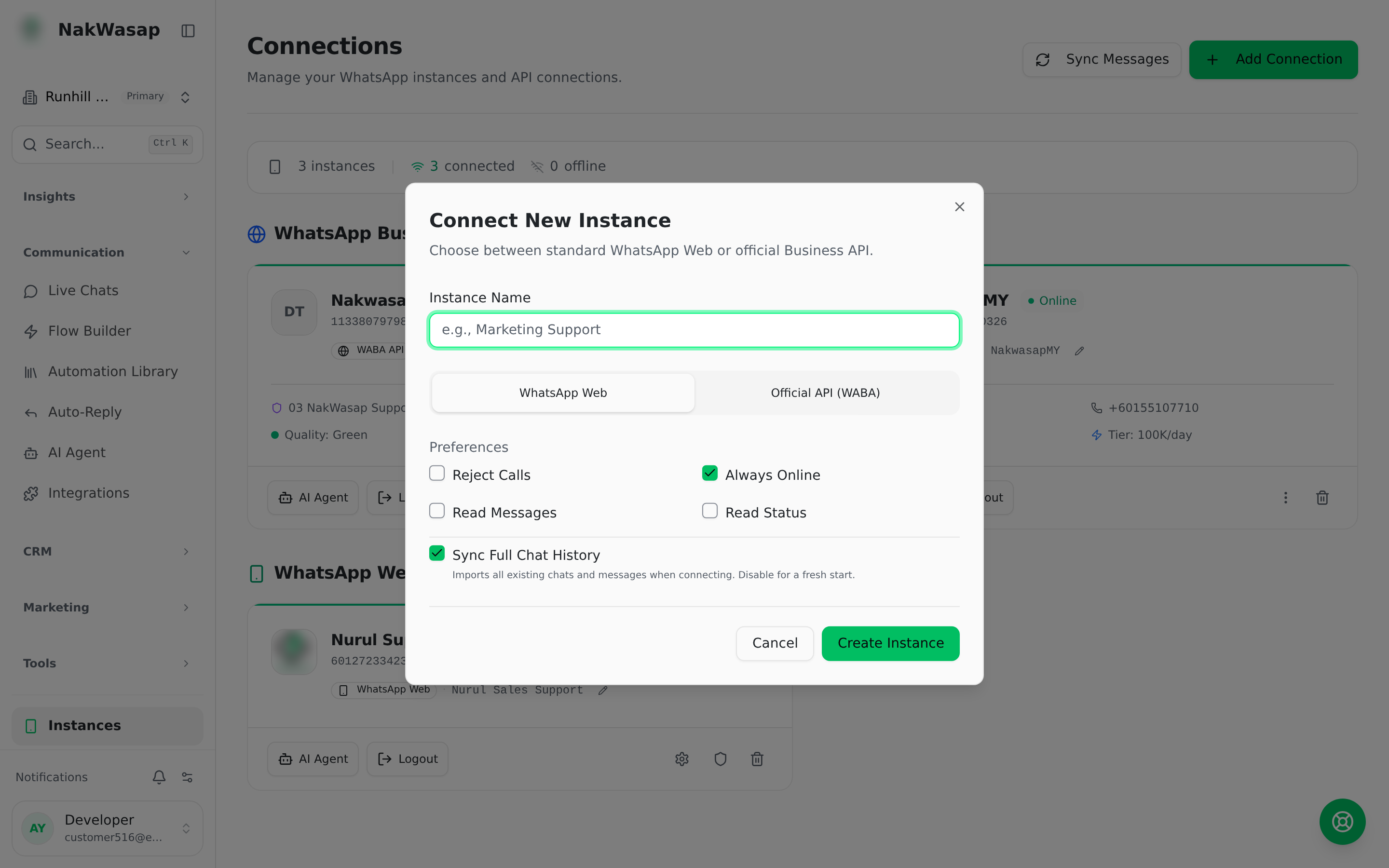
Can't scan? Use the 8-character pairing code instead. Enter your phone number, generate the code, then type it on the phone.
Connecting the Official API
- —Devices → Add device → Official API
- —Either run Meta's embedded signup, or enter your phone number ID and access token manually
- —Copy the webhook callback URL shown and paste it into your Meta app
Per-device settings
Reject calls · Ignore groups · Always online · Read messages · Read status
Anti-ban
05-instance-antiban.png
Anti-ban dialog showing the three presets
If a device fails repeatedly, its queue pauses instead of burning the number. You get a banner with a Resume button.
Health tools (Official API only)
- —Diagnose — token validity, expiry with a days-left warning, permission scopes, account access, and a live send test
- —Business profile — about, description, address, email, two websites, vertical
- —Request history sync — pull past messages from Meta
- —Register number
Syncing recent messages
Pull messages from a device into the dashboard — one device or all, going back up to 7 days. Default is the last 6 hours.
NextTeam Inbox→